A place to capture a thought before deciding where it belongs.
Welcome to HomeRoot
HomeRoot is a place for the things you want to remember, get done or think through.
Try one thing: save a thought of your own. It can be a few words. Leave it in Inbox if you don't know where it belongs yet.
Saved to your account means HomeRoot has confirmed the save. A pending save may still be only on the current device. If a save warning appears, follow its Retry or recovery option before assuming another device has the latest version.
Open Start here for a quick guide, or explore the examples in Weekend plans. You can edit, move or remove them whenever you're ready.
These starting Spaces and Entries are private to your account. You choose what to share.
Start here
A short HomeRoot guide. Keep it nearby, rename it or remove it when you're comfortable.
Make this yours
Spaces give your thoughts a place to land. Use them for a project, an area of life or simply things you want to keep together.
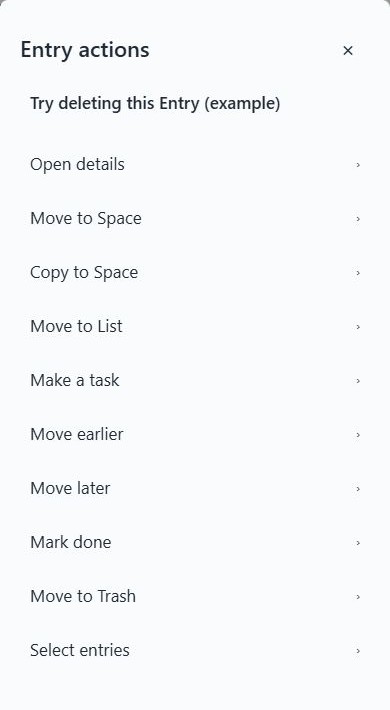
Select an Entry's words to open it. The ⋯ menu holds actions for that Entry. A Space has its own options for its name and appearance.
On the web: use Desk for a visual arrangement or List for a compact view of your Entries. Drag empty Desk background to pan, and use the wheel or pinch to zoom. Choose Whole desk to fit the arrangement back into view.
On your phone: open the main menu for Spaces, other views and Settings. View options changes the current view; an Entry's ⋯ opens its actions. Use Back to return to the previous screen.
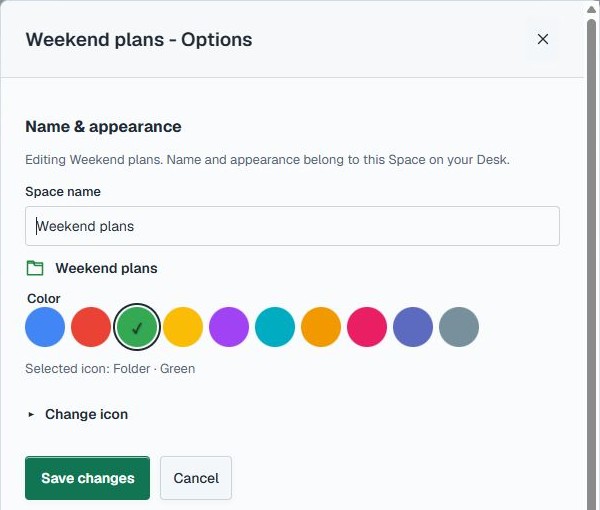
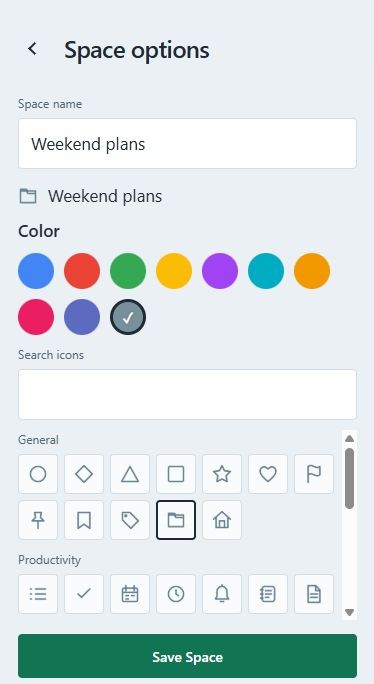
Try renaming Weekend plans to something useful to you. You can change a Space's name, icon and color in its options. Then use Move on an Entry to put it somewhere else.
You can also delete a practice Entry or a Space. Deleting a private Space moves its Entries to Inbox; it doesn't delete their words. Deleting an Entry puts it in Trash, where you can restore it.
Free includes five Spaces in total: Inbox plus four you can make your own. You have two unused Space slots to start. Inbox stays available and can't be deleted or archived.
Show the controls
Web controlsPhone controls · preview
Find it again
You don't have to organize everything before HomeRoot is useful.
Try searching for garden center to find one of the examples. Search looks across the material available to your account, so you can return to a thought without remembering its Space.
Recent helps you return to things you've opened. Done keeps finished work available. Trash is where you can restore an Entry you've deleted.
On your phone, Done & Trash are together in the main menu.
Use Dashboard for a check-in on dated Tasks, Reminders and Lists. The examples start without dates or Reminders; add them when they would help you.
For more help, use ? on the web to open Help. On your phone, open Settings → Help for the same guidance and the HomeRoot guides link. Reading that help doesn't send an AI question or use AI credits.
A thought can grow
An Entry can stay a few words or become a place to work something through.
Open the reading-corner example in Weekend plans and add a reply such as “Measure the space before buying anything.” Your reply stays with that Entry. Add reply saves your words; it doesn't ask AI for an answer.
You can also add photos or files to an Entry. A photo of the corner, a measurement or a receipt can sit beside your notes.
Use a Task when something needs a completion check, and a List when several items belong together. The examples let you try both.
Ask and share when you're ready
Ordinary capture, organization, Search and this guide work on Free without AI.
Ask HomeRoot requests an AI response. Initiating AI requires HomeRoot Plus and available AI credits. Nothing in this guide sends a question automatically.
The Ask conversation opened from your Desk is private to your account. Save useful results into an Entry, Space or Task if you want to keep them. Unsaved Desk Ask conversation is temporary.
Your plan and HomeRoot Plus
Open Settings → Usage to see your plan, remaining capacity and AI credits. On your phone, Settings is in the main menu.
When an upgrade is available, choose Upgrade to Plus on the web or Subscribe to Plus on your phone. Review the current price and monthly renewal terms before confirming checkout. Phone purchases go through the App Store or Google Play; web checkout opens separately. Looking at Usage doesn't start a purchase.
After a confirmed purchase, use Refresh plan and usage if the plan hasn't updated. On your phone, Restore store purchases can check an earlier purchase for this HomeRoot account when that option is available. If a payment is pending, check the original checkout before starting another purchase.
Use the billing controls in Usage to manage your subscription with the provider you bought from. Credit packs are optional one-time purchases for active Plus members; HomeRoot doesn't automatically buy more credits.
Sharing with other people
To work with someone else, connect through People, then deliberately share an Entry or a Space. Check the audience before confirming. Connecting with someone or moving an Entry between private Spaces doesn't share it.
New Entries and discussion in a shared Space are for that Space's members. Check the audience before adding something you intend to keep private.
Ask inside a shared Entry or Space is part of that shared conversation. Its authorized participants may read the answer.
Weekend plans
Editable examples supplied by HomeRoot. Try a List, finish a Task, add to an idea, or turn this Space into something of your own.
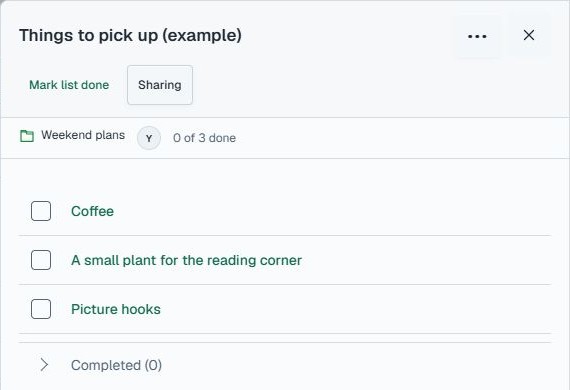
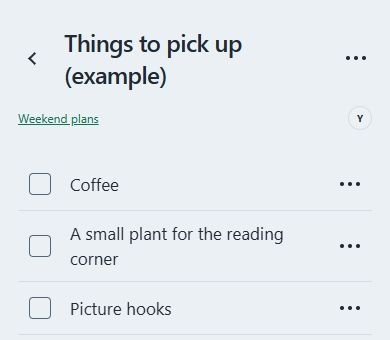
Things to pick up (example)
Try checking an item, adding one of your own or renaming this List. These are examples, so change anything you like.
On your phone, touch and hold an item's body, then drag to reorder it within its section. Its menu also offers Move earlier and Move later.
Coffee
A small plant for the reading corner
Picture hooks
Show the controls
Web controlsPhone controls · preview
Visit the garden center (example)
Look for a small plant that will suit the light by the window.
Try marking this Task done. You can find it in Done and reopen it. Add a due date or Reminder only if you want one.
A due date is a deadline. A planned time is when you intend to work on it. A Reminder is a separate choice for a notification; setting a due date alone doesn't create one. Open Remind me to set a Reminder, and check Settings → Notifications if notifications aren't arriving.
Optional phone shortcut: swipe an Entry row right to open Move, or left to mark it Done. A completed swipe performs the action; the menu offers the same choices. Use the brief Undo if you finish something by mistake.
A reading corner by the window? (example)
Maybe a comfortable chair, a small lamp and a plant would make this a good place to read. Measure the space before choosing furniture.
This is an example of an unfinished idea. Add a reply, attach a photo of your own, or rewrite it for something you're considering.
Try deleting this Entry (example)
This Entry is here to practice on.
Open its actions and choose Delete on the web or Move to Trash on your phone. Then open Trash and restore it if you'd like to try recovery. You can remove it again when you're finished.
Want to clear the whole example Space instead? Deleting Weekend plans moves its remaining Entries to Inbox. Delete the example Entries separately if you want them out of your active work too.